SiteGround Suspended a Client Site for Malware — Removing a Tiny File Manager Backdoor (single-compiler.php)
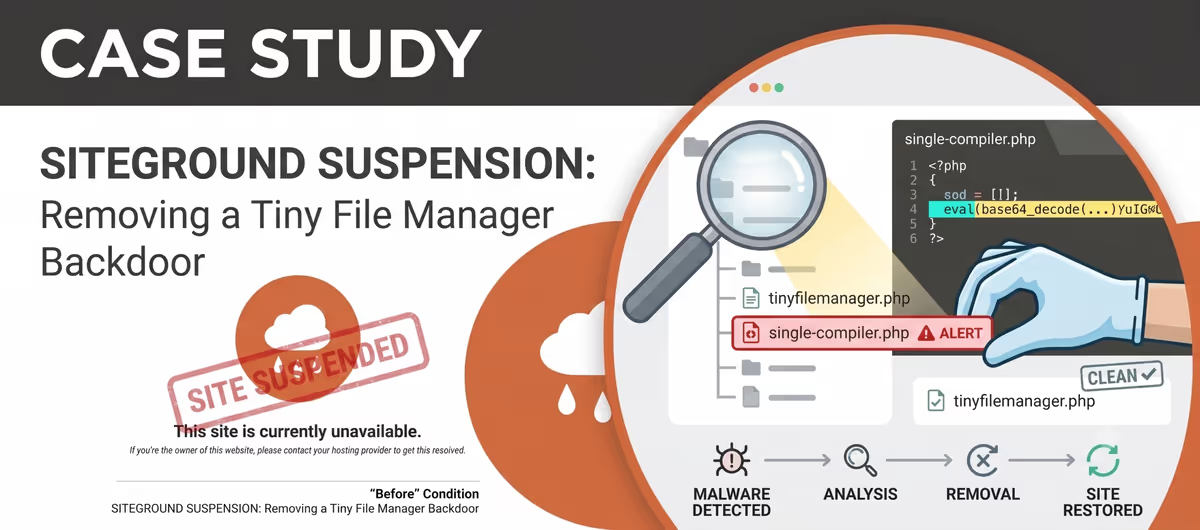
Quick answer: SiteGround suspends a site and shows “Malware detected for your site(s)” when its scanner finds malicious PHP on your hosting. In this cleanup the culprit was single-compiler.php — a renamed copy of the open-source Tiny File Manager hidden inside the WooDmart theme, plus 13 camouflaged secondary backdoors. Removing every flagged file, replacing the theme and core from clean sources, then using SiteGround’s Request Scan lifted the suspension the same day.
The two messages that brought this client to me
Public site: “This site is currently unavailable. If you’re the owner of this website, please contact your hosting provider to get this resolved.”
SiteGround dashboard: “Malware detected for your site(s). Web access for the affected site(s) under your hosting plan has been temporarily suspended until the malware is removed.”
A client’s WooCommerce store went dark mid-week. Loading the domain returned a plain SiteGround holding page instead of the storefront, and the SiteGround Client Area showed a red malware notice. This is a walkthrough of exactly what SiteGround flagged, what the malware actually was, how I removed it, and how I got the suspension lifted — written from the real cleanup, not a generic checklist. The specific files differ from site to site; the SiteGround flow and the method below stay the same.
Symptom 1: “This site is currently unavailable”
The first thing the client saw was the front end replaced by SiteGround’s suspension page. Unlike a normal WordPress crash, there was no “critical error,” no white screen — just a hosting-level notice with a rain-cloud icon. That distinction matters: when the message reads “If you’re the owner of this website, please contact your hosting provider to get this resolved,” the problem isn’t in WordPress, it’s that SiteGround has quarantined the account at the server level. Nothing you change in wp-admin will bring it back, because wp-admin is offline too.

Symptom 2: “Malware detected for your site(s)” in the SiteGround dashboard
Logging into the SiteGround Client Area, the Important Notifications panel carried the suspension reason: “Malware detected for your site(s). Web access for the affected site(s) under your hosting plan has been temporarily suspended until the malware is removed.” Next to it sat a Review button.
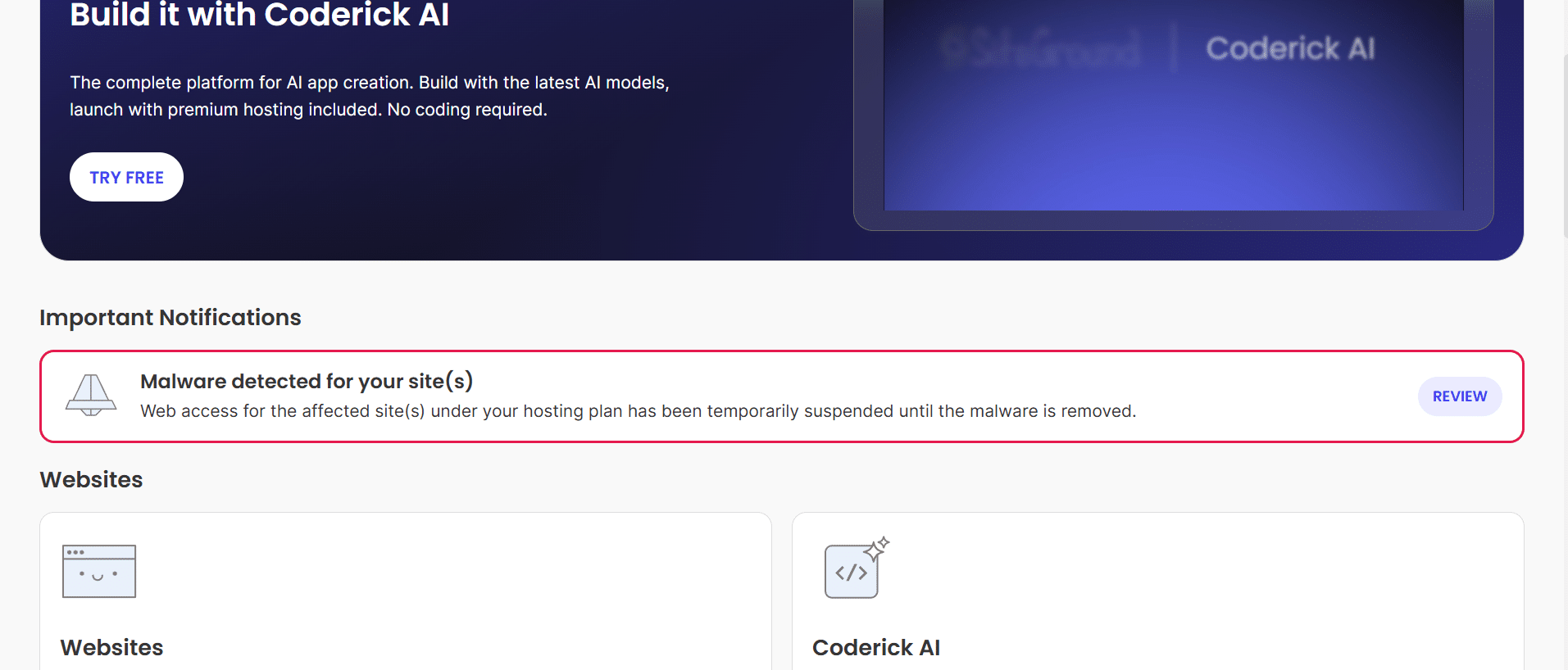
Clicking Review opens a long advisory (sections like “Take actions to avoid future infection” and “Using Site Scanner service is highly recommended”), and at the bottom four buttons: Close, View Evidence, Request Cleanup, and More. View Evidence is the one that matters — it lists the exact files SiteGround’s scanner flagged.
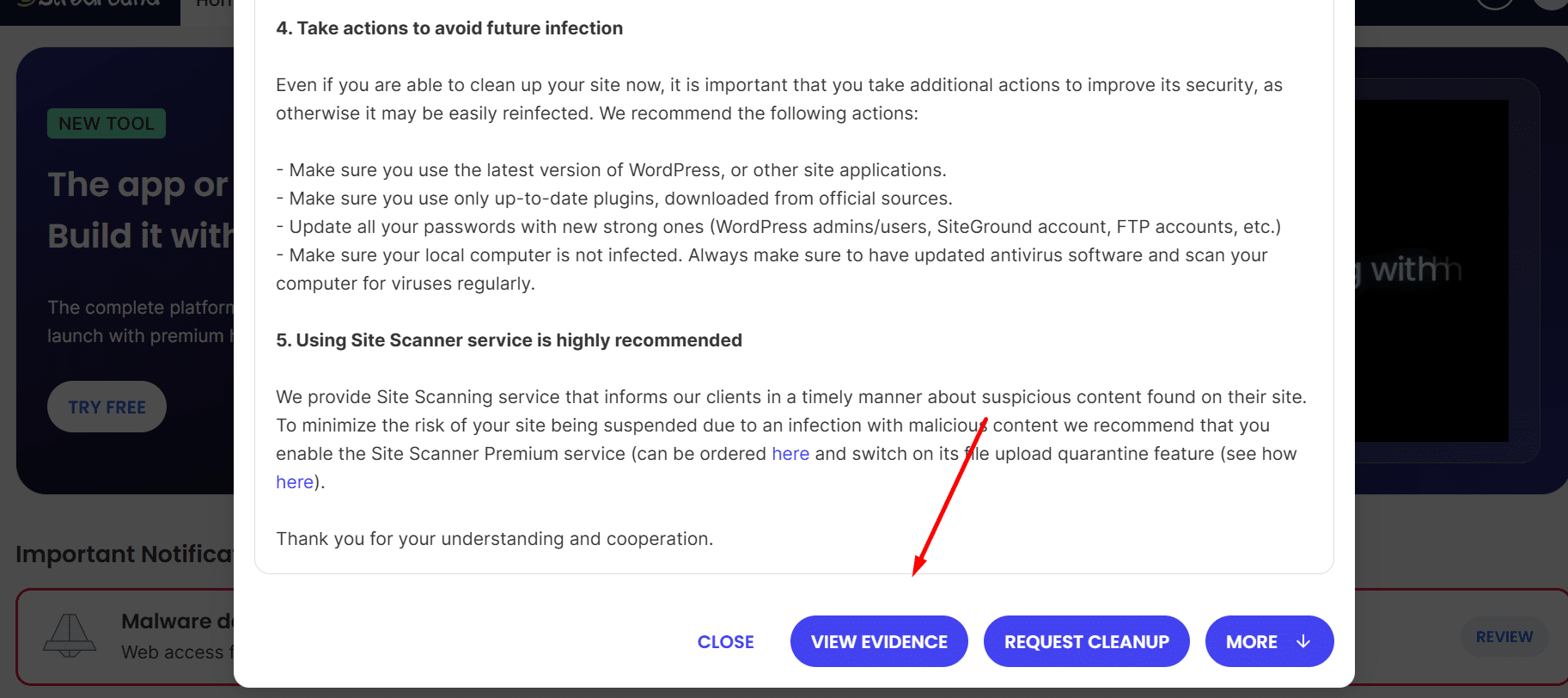
The evidence: 14 suspicious files
SiteGround reported 14 suspicious files, each with a full server path and a detection timestamp. The list is the real value here — it tells you precisely where to dig instead of scanning blind.
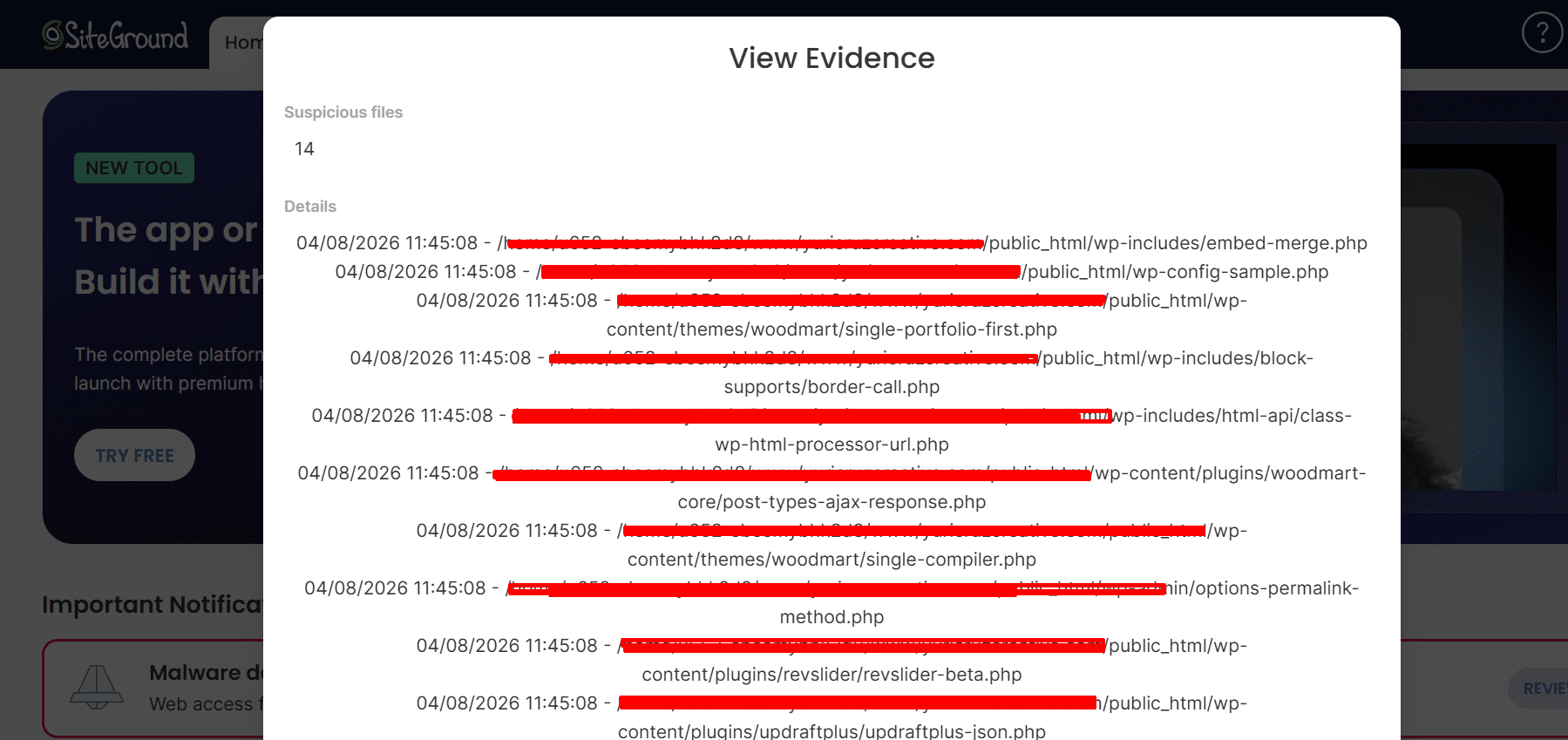
The flagged paths followed an obvious pattern — file names that look like real WordPress, plugin, and theme files but don’t exist in any clean install:
| Flagged file | Where it sat | What it impersonates |
|---|---|---|
single-compiler.php |
wp-content/themes/woodmart/ | A WooDmart single-*.php template (the primary backdoor) |
single-portfolio-first.php |
wp-content/themes/woodmart/ | WooDmart portfolio template |
embed-merge.php |
wp-includes/ | WordPress embed code |
border-call.php |
wp-includes/block-supports/ | Core block-supports border.php |
class-wp-html-processor-url.php |
wp-includes/html-api/ | Core class-wp-html-processor.php |
options-permalink-method.php |
wp-admin/ | Core options-permalink.php |
post-types-ajax-response.php |
wp-content/plugins/woodmart-core/ | WooDmart Core internals |
revslider-beta.php |
wp-content/plugins/revslider/ | Slider Revolution file |
updraftplus-json.php |
wp-content/plugins/updraftplus/ | UpdraftPlus file |
wp-config-sample.php |
public_html/ (root) | Real WP file — flagged because it had been modified |
Scattering shells across wp-includes, wp-admin, the theme, and three different plugins is deliberate. It’s a distributed backdoor: delete one and the attacker still has nine more doors. This is why a “found the bad file, deleted it” approach gets sites re-suspended within days.
What the malware actually was: a Tiny File Manager backdoor
The headline file, single-compiler.php, sat in the WooDmart theme folder at 181 KB with a modification date stomped to match the legitimate theme files around it (a 2020 timestamp), so it blended into a directory listing. WooDmart has no template called single-compiler.php — the name simply borrows the theme’s single-*.php convention to look native.
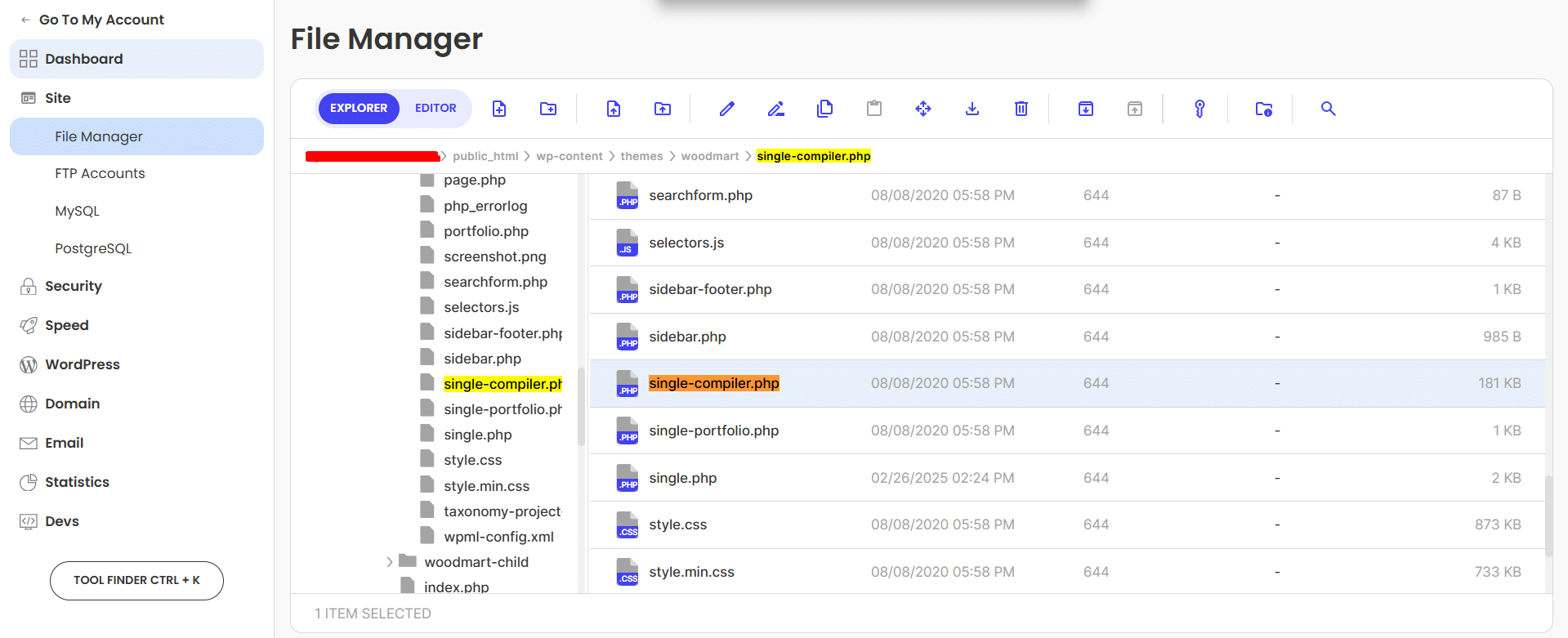
Opening it revealed it was not WordPress code at all. It was a renamed copy of Tiny File Manager (the open-source “H3K / CCP Programmers” single-file PHP file manager), weaponized as a full webshell. Tiny File Manager is a legitimate admin tool, but dropped into a hacked site it gives an attacker a browser-based control panel to browse the entire document root, upload and edit any file, delete files, change permissions, build and extract archives, and pull remote payloads in via its “upload from URL” feature — all without ever touching wp-admin. The copy here shipped with a hardcoded admin account and a noindex, nofollow meta tag so search engines wouldn’t surface it.
The other 13 files were lighter secondary shells and loaders following the same camouflage logic. Based on the outdated WooDmart Core plugin present on the site (older versions carried a known PHP Object Injection flaw) and the timestamps, the most probable entry point was a vulnerable/outdated theme component or a reused admin credential — not a SiteGround server breach. I cover how persistent shells like this survive a “delete the file” cleanup in this backdoor breakdown.
How to confirm a Tiny File Manager backdoor on your own site
If SiteGround (or any host) flags files like these, these commands confirm the infection over SSH before you delete anything. Tiny File Manager carries unmistakable signatures:
# Hunt for Tiny File Manager signatures anywhere in the site
grep -rl "Tiny File Manager" wp-content/ wp-includes/ wp-admin/
grep -rl "CCP Programmers" .
grep -rln '\$auth_users' wp-content/ wp-includes/ wp-admin/
grep -rl "FM_SESSION_ID" .
# Core/plugin files that should not exist will fail checksum verification
wp core verify-checksums
wp plugin verify-checksums --all
# Oversized or odd PHP hiding in the theme (a 181 KB "template" is a red flag)
find wp-content/themes/ -name "*.php" -size +50k -exec ls -lh {} \;
find wp-content/themes/woodmart/ -name "single-*.php"wp core verify-checksums is the fastest way to expose the camouflaged core files — embed-merge.php, border-call.php, class-wp-html-processor-url.php and options-permalink-method.php all show up as files that don’t belong in a clean WordPress install. For a fuller detection routine, see my guide on how to detect WordPress malware.
The cleanup, step by step
SiteGround keeps the site quarantined while you work, but it gives you tools to operate. Under the Review modal’s More button you’ll find Whitelist IP (so you can reach the site to clean it) and Request Scan (to re-check once you’re done).
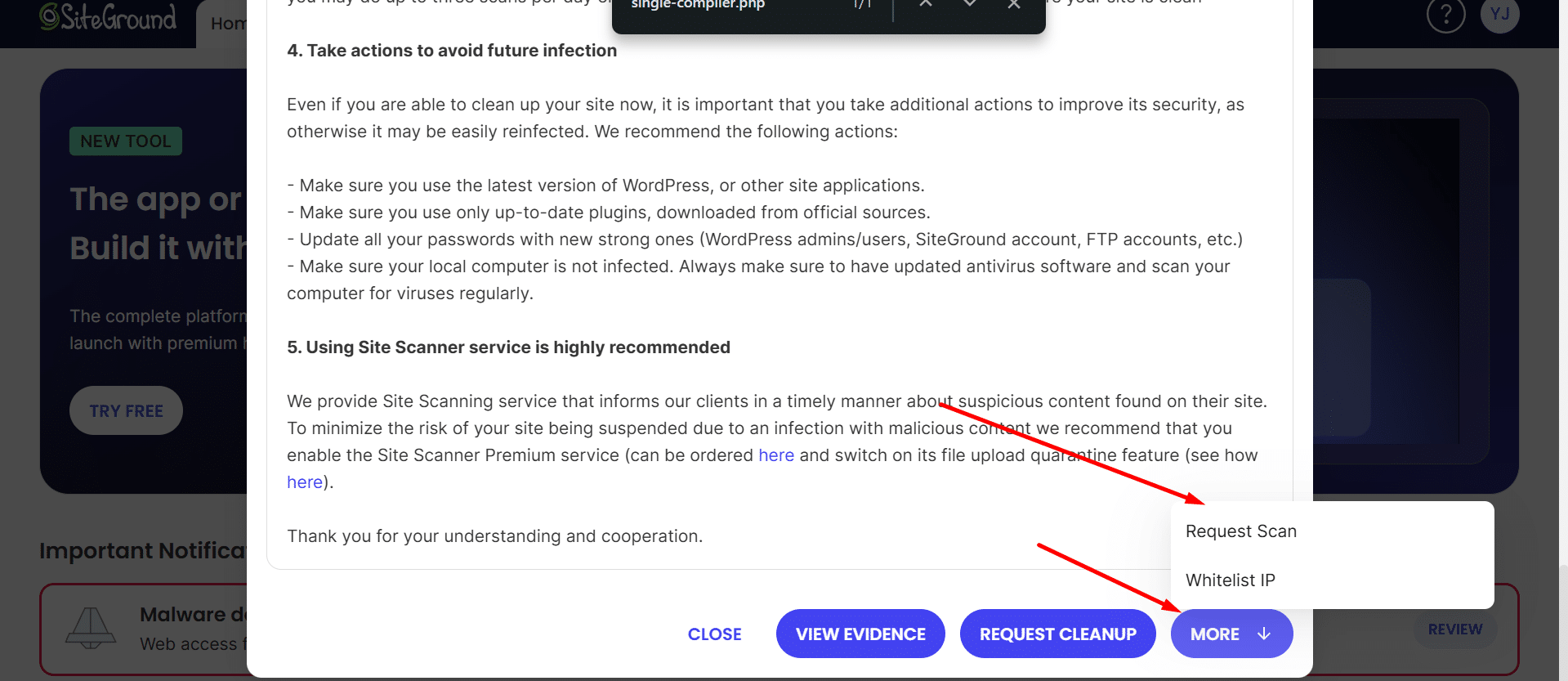
- Whitelist my IP via More → Whitelist IP, so I could reach File Manager and the site while everyone else stayed blocked.
- Take a forensic backup first. Before deleting anything I copied the flagged files off-server so I had a record of the attack and a safety net.
- Removed all 14 flagged files, then hunted for siblings the scanner missed using the grep and checksum commands above. Host scanners rarely catch 100% — assume there are more.
- Replaced the theme and core from clean sources. I deleted the WooDmart folder and reinstalled it from a fresh download, and reinstalled WordPress core, rather than trusting files that had been tampered with.
- Checked the usual hiding spots —
wp-config.php,.htaccess,mu-plugins, the uploads directory, andwp_users/wp_optionsfor rogue admins or injected autoloaded rows. - Hit Request Scan. SiteGround re-scanned, returned clean, and the suspension lifted the same day. (Rescans are free, up to three per day.)
The broader version of this recovery — including what to do when the host won’t restore access and how to clean over FTP — is in my hosting account suspended malware recovery guide. I documented a similar host-level suspension on a different provider in this Bluehost recovery case study.
Why I re-scanned with Wordfence after SiteGround cleared it
A passing host scan is necessary, not sufficient. SiteGround’s scanner is signature-based and tuned to protect the server, not to give you a forensic all-clear — it sometimes misses lower-signal shells and injected database content. Once the site was back online I installed Wordfence and ran a full scan as an independent second opinion. It confirmed the file system was clean and surfaced nothing new, which is exactly the confirmation you want before you call a site recovered. Two different engines agreeing is far stronger than trusting one.
Hardening so the suspension doesn’t repeat
A clean site that keeps the same passwords and the same vulnerable plugins gets reinfected. After the rescan passed, I:
- Rotated every password — WordPress admins, SiteGround account, FTP/SFTP, database, and email.
- Regenerated the secret keys and salts in
wp-config.phpto force-log-out any session an attacker still held. - Updated WordPress core, the WooDmart theme, and all plugins to current versions, and removed anything nulled or unused.
- Disabled in-dashboard file editing (
define('DISALLOW_FILE_EDIT', true);), enabled two-factor on admin logins, and tightened file permissions.
My full post-cleanup routine is in what to do after fixing a hacked WordPress site.
Result
The suspension was lifted the same day the cleanup finished, the storefront came back online, SiteGround’s rescan returned clean, and a follow-up Wordfence scan confirmed no reinfection. Total downtime was a single working session rather than the days a back-and-forth with support typically costs.
“My website was suffering from some redirect malware. MD was able to take care of the problem for a reasonable fee. For me, he was a lifesaver. I will certainly go to him first should something like that happen again.” Kendall Miller, Founder
When to get help
If SiteGround has suspended your site and the evidence list looks anything like the one above — disguised PHP files scattered across core, theme, and plugins — the safe move is to remove every shell, not just the obvious one, before you request a rescan. I’ve cleaned 4,500+ hacked WordPress sites and lifted host suspensions on SiteGround, Bluehost, Hostinger, and more. If you’d rather not do it yourself, my WordPress malware removal service handles the whole thing — diagnosis, cleanup, rescan, and hardening — or you can hire me directly.
Frequently asked questions
Why did SiteGround suspend my site for malware?
SiteGround runs automatic malware scans on hosted accounts. When the scanner finds malicious PHP — a webshell, backdoor, or injected loader — it temporarily suspends web access to protect its servers and IP reputation. The site stays quarantined until you remove the flagged files and pass a rescan.
What does “Malware detected for your site(s)” mean in SiteGround?
It means SiteGround’s scanner found malicious code in your hosting account and has suspended web access until it’s cleaned. Open the Client Area, click Review on the notification, then View Evidence to see the exact file paths. Remove every listed file (and any siblings), then use Request Scan.
Is single-compiler.php a real WooDmart theme file?
No. WooDmart has no single-compiler.php template. The name copies the theme’s legitimate single-*.php naming so it blends in. In this case it was a renamed Tiny File Manager — an open-source file manager weaponized as a backdoor. If you find it in your theme folder, delete it and scan for more shells.
How do I get my SiteGround site unsuspended after malware?
Whitelist your IP (Review → More → Whitelist IP) to regain access, remove every file in the View Evidence list plus any hidden siblings, replace tampered core/theme/plugin files from clean copies, then click Request Scan. A clean rescan lifts the suspension, usually within minutes to a few hours.
Does SiteGround’s scanner catch all the malware?
Not always. Host scanners are signature-based and can miss lower-signal shells or database injections. After SiteGround clears your site, run an independent scan with Wordfence or a manual file review. Two engines agreeing — plus a checksum verification of core and plugins — is a far stronger all-clear than one passing scan.
Last updated: April 2026 by MD Pabel, WordPress Security Specialist — 4,500+ sites cleaned.