What to Do After Fixing a Hacked WordPress Site (Checklist From Real Cleanups)

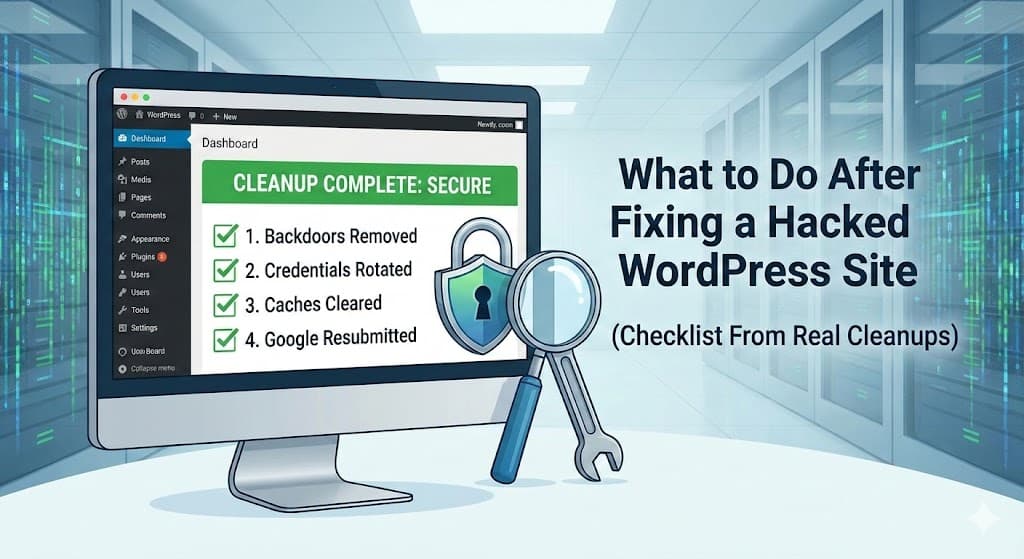
You’ve scanned your site, deleted the malicious files, and your website finally loads again. You are likely breathing a massive sigh of relief.
Don’t get too comfortable yet.
The most dangerous time for a WordPress site is the 24 hours after a cleanup. Why? Because hackers rarely rely on a single entry point. If you only removed the visible symptoms (the malware) without closing the door they came in through (the vulnerability), they will walk right back in.
In professional incident response, “cleaning the files” is only 50% of the job. The rest is ensuring they can’t return.
This isn’t a generic list telling you to “install a security plugin.” This is the exact post-cleanup checklist used by experts to ensure a hacked site stays clean.
First: Confirm the Hack Is Actually Gone
Before you change a single password, you need to know if the infection is truly gone.
Why “Malware Removed” Is Not Enough
Many automated scanners only look for known malware signatures. They often miss:
- Backdoors: Tiny snippets of code hackers leave behind to regenerate access later.
- Modified Core Files: Subtle changes to
wp-login.phporindex.phpthat look normal but steal data. - Delayed Payloads: Malware programmed to “sleep” for a week before activating again.
If you aren’t 100% sure the infection is gone, nothing else in this guide will save you.
Need a second pair of eyes? If you are unsure if the backdoor is truly gone, check out our WordPress Malware Removal Service to get a manual, expert review.
Step 1: Rotate Credentials & Reset Salts (Kick Everyone Out)
Hackers don’t just break in; they steal keys while they are inside. You must assume every credential associated with the site is compromised.
The “Salt” Update (Critical Step)
Even if you change passwords, hackers might still be logged in via valid browser cookies. To instantly force-logout every user (including hackers), you must change your WordPress Salts.
You can do this using a security plugin or by editing your wp-config.php file manually. Replace the blocks that look like this with fresh codes generated from the WordPress API:
define('AUTH_KEY', 'put your unique phrase here');
define('SECURE_AUTH_KEY', 'put your unique phrase here');
// ... rest of the keys
Rotate These Passwords Immediately
- WordPress Admins: Change passwords for all admin accounts.
- FTP/SFTP Accounts: If a hacker accessed your file system, they likely scraped your FTP details.
- Database Password: The hacker had access to
wp-config.php(plain text). Update this in your hosting panel and then updatewp-config.php.
Step 2: Clear ALL Caches (The “Phantom” Infection)
We often see clients panic because they cleaned the site, but they still see the “Red Warning Screen” or malicious redirects. 90% of the time, the site is clean, but the browser or server is serving an old, cached version of the infection.
You must clear caches in this specific order:
- Site Cache (Plugin): If you use WP Rocket, W3 Total Cache, or Autoptimize, click “Purge All Caches.”
- Server Cache: If your host uses NGINX or Varnish caching, log in to your hosting panel and flush the server cache.
- CDN Cache (Cloudflare): This is the most common culprit. Log in to Cloudflare → Caching → Configuration → Purge Everything.
- Browser Cache: Test your site in Incognito mode or hard-refresh your browser (Ctrl + F5 on Windows, Cmd + Shift + R on Mac).
Step 3: Check Cron Jobs & Server Processes
If malware keeps returning automatically every few hours, it’s likely triggered by a Cron Job or a lingering server process.
Check WordPress Cron Jobs
Hackers schedule tasks to re-download malware if you delete it. Use a plugin like WP Crontrol to inspect events. Look for suspicious hooks (e.g., eval_xml_rpc or random strings like xys_check_update) and delete them.
If you have SSH access (WP-CLI), run this command to list all scheduled tasks:
wp cron event listCheck Server-Level Crons & Processes
Sometimes the infection isn’t in WordPress, but on the server itself. If you have SSH access, check for malicious processes running in the background:
1. Check for malicious running processes:
ps aux | grep phpIf you see a PHP script running that you didn’t start (especially one with a weird name running from /tmp or /uploads), kill it immediately.
2. Check server cron jobs:
crontab -lIf you see a cron job triggering a file like .i386 or a PHP script in your uploads folder, delete it.
Step 4: Check Google Search Console
Your site might look clean on the front end, but Google sees everything. Log in to Google Search Console to check for SEO damage.
- Security Issues Tab: If you see a red banner (“Deceptive Pages”), you are currently penalized. You must request a review once you are sure the site is clean.
- Coverage Tab: Look for a spike in indexed pages. Hackers often generate thousands of Japanese or Pharma spam pages. If you don’t remove these from Google’s index, your SEO will tank.
Seeing weird characters in search results? If your site title is showing Japanese characters in Google, read our guide on How to Remove Japanese SEO Spam.
Step 5: Remove Old & Abandoned Plugins
How did the hacker get in? Most likely, it was an outdated plugin.
The “Disabled ≠ Safe” Rule
Many site owners think that if a plugin is deactivated, it is safe. This is false. Malicious code can execute files inside a deactivated plugin folder. If you aren’t using a plugin, delete it entirely.
Also, if you are using “Nulled” (pirated) themes or plugins, delete them immediately. They are the #1 source of backdoors.
Step 6: Why Malware Comes Back After ‘Cleanup’
If you cleaned your site yesterday and the malware is back today, you didn’t miss a file—you missed the mechanism.
The Reality Check: If your site was cleaned but malware came back within 48 hours—that is NOT normal. It usually means:
- You missed a hidden Admin user.
- There is a backdoor in your
mu-pluginsfolder. - The database is still infected (check the
wp_poststable for script injections).
When to Call an Expert Again
Post-hack anxiety is real, but you should be vigilant, not panicked. However, if you notice the following signs, the cleanup was incomplete:
- Users are being redirected to spam sites again.
- New “administrator” accounts are appearing on their own.
- Traffic drops suddenly after recovering.
If this happens, you are stuck in a reinfection loop. You need a forensic cleanup to find the root cause.
Don’t let your SEO and reputation take another hit.
[Contact Me Today] for a complete malware removal and security audit that ensures the hackers stay out for good.