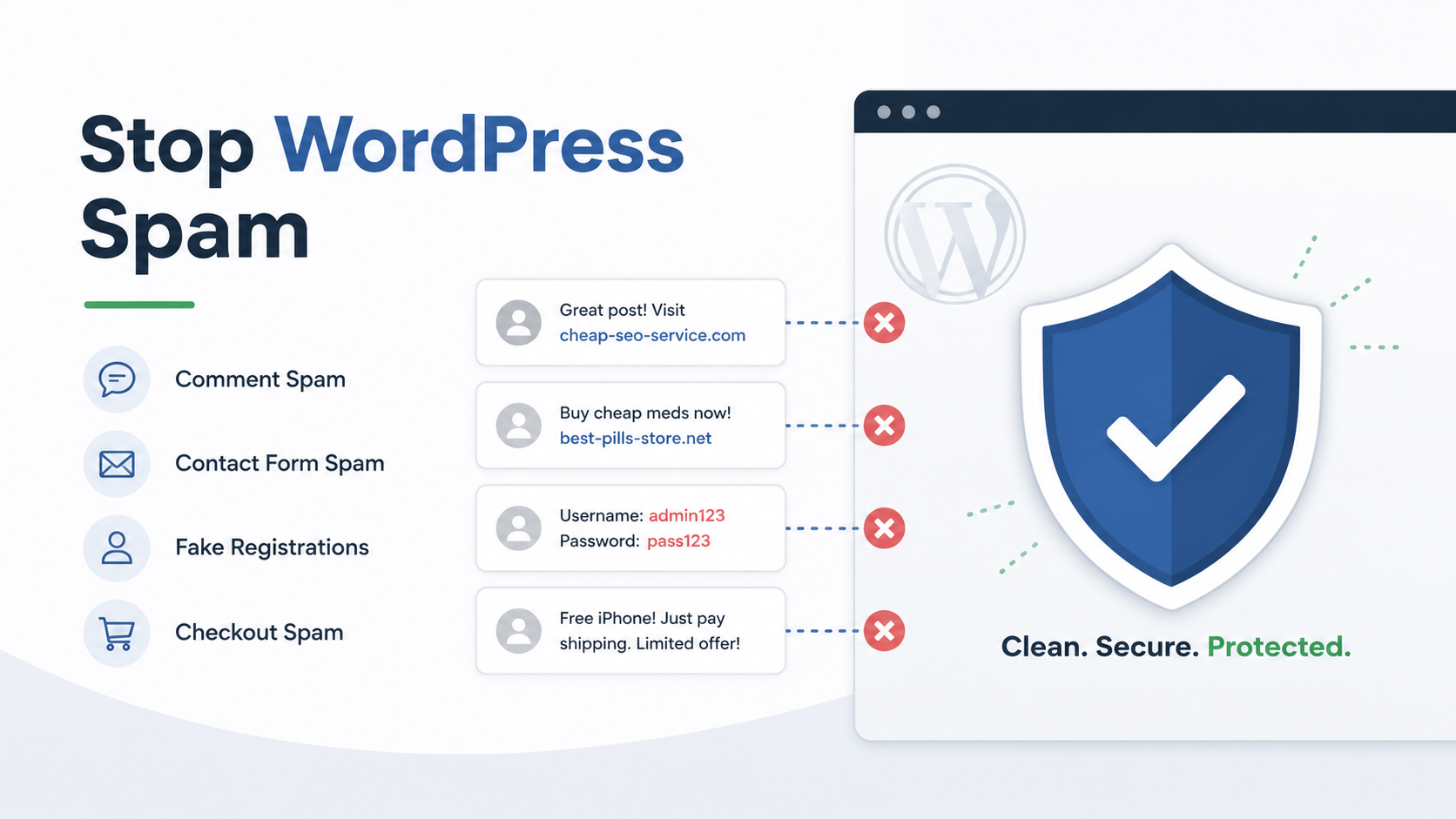
Spam on WordPress does not always look the same.
One website may receive hundreds of promotional comments. Another may get nonsense messages through its contact form. An online store may suddenly receive fake WooCommerce orders, while a membership site may fill up with bot-generated user accounts.
The mistake I often see is treating every type of WordPress spam with the same solution.
Installing Google reCAPTCHA on every form may stop some bots, but it can also add more external scripts, complicate the user experience, and affect performance. On the other hand, relying only on a simple honeypot may not be enough for an active WooCommerce store targeted by more advanced bots.
On client websites, I normally use a layered approach:
- Remove forms and features the website does not need.
- Start with a lightweight honeypot.
- Monitor whether the spam continues.
- Add Cloudflare Turnstile or Google reCAPTCHA only where stronger protection is required.
- Use rate limiting, firewall rules, email verification, or fraud controls for persistent abuse.
This guide explains how to stop spam on WordPress without immediately adding unnecessary scripts or blocking legitimate visitors.
Quick answer: the WordPress spam protection setup I normally use
Here is the general approach I follow.
| Spam problem | Start with | Add when needed |
|---|---|---|
| Comment spam | Comment moderation and honeypot | Turnstile or stronger filtering |
| Contact-form spam | Honeypot | Cloudflare Turnstile or reCAPTCHA |
| Fake user registrations | Disable unnecessary registration or require approval | Turnstile and rate limiting |
| WooCommerce fake orders | Turnstile on checkout | Fraud controls and firewall rules |
| Login attempts | Login rate limiting | Wordfence, AIOS, or Cloudflare rules |
| Emails landing in spam | SMTP and domain authentication | Email-provider investigation |
The important point is that WordPress spam should be handled according to the type of abuse.
A contact-form bot does not require the same solution as a fake checkout bot. Similarly, an SMTP plugin will not stop form submissions, because email delivery and form spam are separate problems.
First, identify what type of WordPress spam you have
Before installing another plugin, identify where the spam is entering the website.
WordPress comment spam
Common signs include:
- Promotional links in comments
- Irrelevant comments on old posts
- Repeated messages from different names
- Comments written only to create backlinks
- Large numbers of pending comments
Comment spam is usually automated and can often be reduced using WordPress settings, moderation, and a honeypot.
WordPress contact-form spam
Contact-form spam may include:
- Cryptocurrency promotions
- SEO service offers
- Random characters
- Repeated messages from different email addresses
- Fake inquiries with suspicious links
- Automated submissions every few minutes
This can affect Contact Form 7, Elementor Forms, WPForms, Gravity Forms, Fluent Forms, and other form plugins.
Fake WordPress user registrations
Registration bots may create accounts using:
- Random usernames
- Disposable email addresses
- Foreign-language names unrelated to the website
- Similar email patterns
- Subscriber accounts created within seconds of each other
If public registration is not required, the simplest solution is often to disable it.
Fake WooCommerce orders
Fake orders may appear as:
- Repeated failed orders
- Cash-on-delivery orders using fake details
- Orders using random phone numbers
- Many purchases of the same low-cost product
- Checkout attempts from automated scripts
- Orders using similar addresses or email patterns
These are often more serious than ordinary form spam because they can affect stock levels, reporting, payment gateways, and store operations.
Login abuse
Repeated login attempts are usually not ordinary spam. They are more closely related to brute-force attacks, credential stuffing, or automated vulnerability scanning.
They should be handled using login rate limiting, strong passwords, two-factor authentication, firewall protection, and security monitoring.
Step 1: disable WordPress features you do not need
The lightest anti-spam solution is removing the entry point entirely.
Disable comments when they are unnecessary
Many business websites do not need comments.
You can disable comments for new posts from:
Settings → Discussion
Uncheck:
Allow people to submit comments on new posts
For existing posts, comments may need to be disabled through bulk editing or a dedicated plugin.
When comments are useful, enable moderation rather than publishing everything automatically.
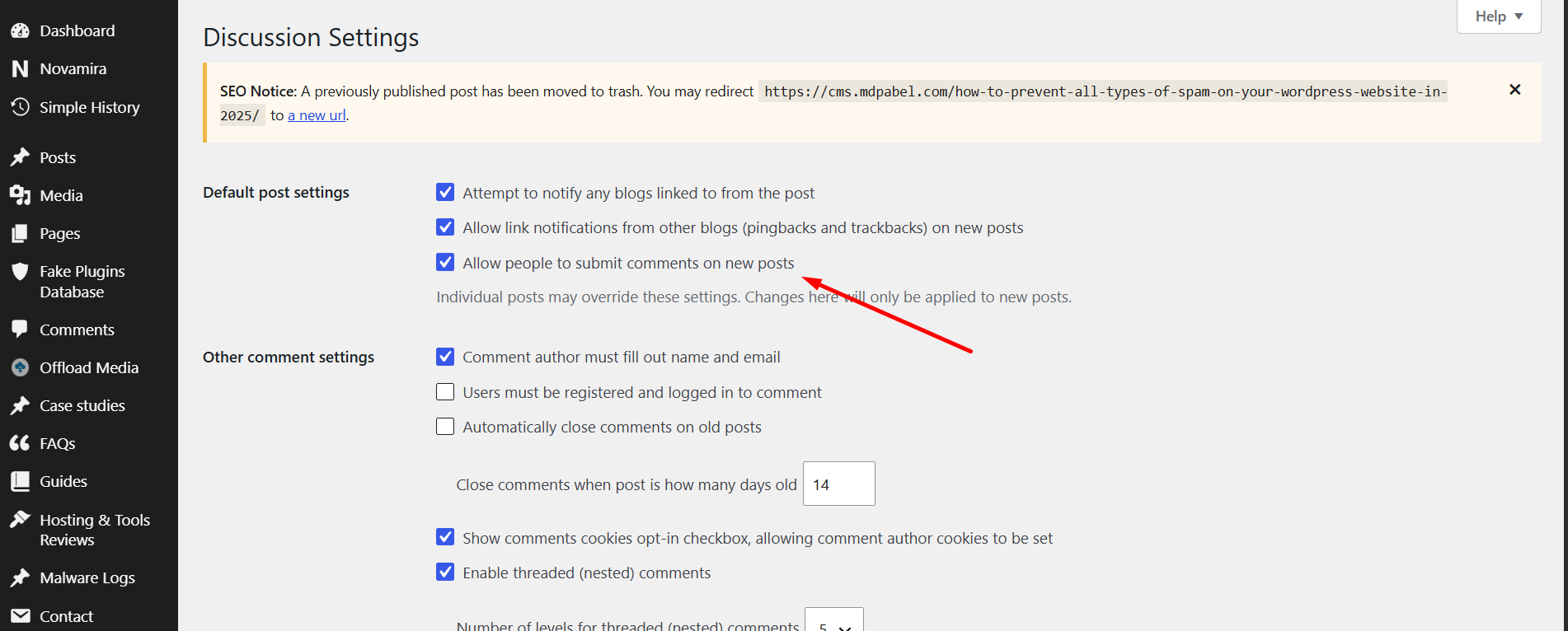
Useful settings include:
- Requiring manual approval
- Holding comments containing links
- Closing comments on older posts
- Requiring a previously approved comment
- Limiting the number of links allowed in a comment
Disable public registration when it is unnecessary
Check:
Settings → General
Look for:
Anyone can register
If the website does not need public accounts, disable this option.
Removing unnecessary public registration is more effective than trying to filter thousands of fake registrations later.
Remove unused forms
Old landing pages, unused newsletter forms, and abandoned test forms may continue receiving submissions.
Review the website and remove forms that are no longer needed. A hidden or forgotten form can still be discovered and submitted by bots.
Step 2: start with a honeypot
For many client websites, I start with honeypot protection.
A honeypot adds an invisible field that normal visitors do not see. Basic bots often fill every available form field, including the hidden one. When that happens, the submission can be rejected as spam.
The main advantages are:
- No visible puzzle
- No user interaction
- No external challenge for ordinary visitors
- Usually less performance impact
- Quick to configure
- Suitable for many contact forms and comment forms
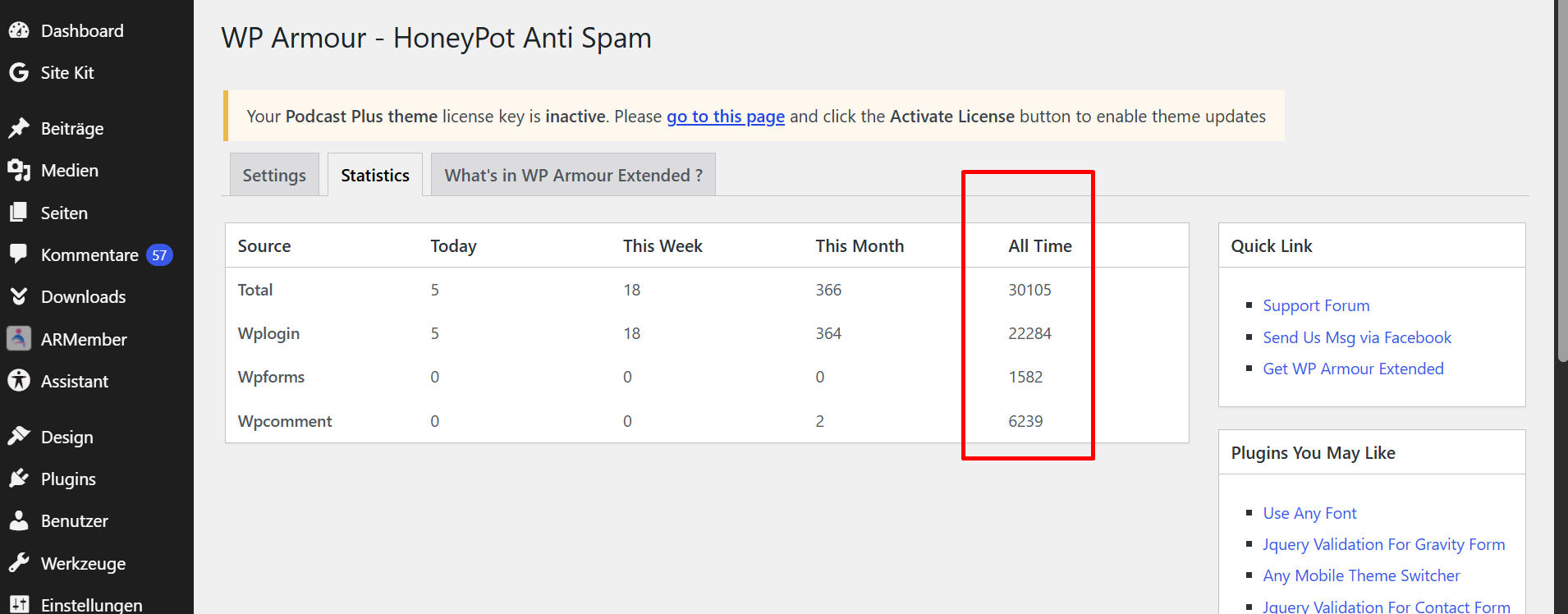
One plugin I commonly use is WP Armour – Honeypot Anti Spam.
It supports several common WordPress forms and can be a good first layer for:
- Contact-form spam
- WordPress comment spam
- Registration spam
- Basic bot submissions
When a honeypot works well
Honeypots are often effective against:
- Simple automated scripts
- Bots that fill every input
- High-volume generic form spam
- Basic comment bots
- Low-level fake registrations
For a normal business contact form receiving occasional spam, this may be all that is needed.
When a honeypot may not be enough
More advanced bots can:
- Detect hidden fields
- Execute JavaScript
- Mimic real browser behavior
- Wait before submitting
- Target specific form fields
- Use human-assisted spam systems
When spam continues after enabling a honeypot, I normally add a stronger layer rather than installing several overlapping honeypot plugins.
Step 3: add Cloudflare Turnstile when spam continues
Cloudflare Turnstile is usually my next step when honeypot protection is not enough.
I commonly use the Simple Cloudflare Turnstile plugin.
It can add protection to areas such as:
- WordPress login
- User registration
- Password reset
- Comment forms
- Contact forms
- WooCommerce checkout
- WooCommerce account forms
Turnstile is useful when a website needs stronger bot detection without showing traditional image-selection CAPTCHA challenges to every visitor.
You will need a Cloudflare Turnstile site key and secret key. These are created from the Cloudflare dashboard and then added to the plugin settings.
Do not enable Turnstile everywhere without testing
Only protect the forms that need it.
For example, a small contact form may work perfectly with a honeypot. It may not need another external script.
A WooCommerce checkout receiving fake orders has a higher level of risk and may justify stronger verification.
After enabling Turnstile:
- Clear the website cache.
- Open the website in a private browser window.
- Test the protected form while logged out.
- Test on desktop and mobile.
- Confirm that the submission is completed.
- Check for JavaScript errors.
- Test checkout using the active payment method.
- Monitor spam activity over the following days.
A real WooCommerce case: stopping fake orders from bots
One of my client websites began receiving fake WooCommerce orders.
The orders were not real purchase attempts. They were being generated by automated bots submitting the checkout form.
Fake orders can create several problems:
- Incorrect sales reports
- Unnecessary order notifications
- Reduced inventory
- Wasted staff time
- Payment-gateway errors
- Confusion between real and fake customers
After confirming that the activity was automated, I added Cloudflare Turnstile to the WooCommerce checkout flow.
I then tested the checkout as a logged-out customer to ensure that legitimate purchases were still working.
The bot-generated fake orders stopped after the protection was introduced.
That does not mean Turnstile will stop every type of WooCommerce fraud. It is mainly useful against automated form and checkout submissions.
A human attacker, stolen payment cards, or requests sent directly to a payment provider may require additional fraud-prevention tools.
For persistent WooCommerce abuse, also review:
- Payment-gateway fraud settings
- Velocity limits
- Address verification
- Email verification
- Order patterns
- IP reputation
- Cloudflare firewall rules
- Failed-payment logs
Step 4: use Google reCAPTCHA only when needed
Google reCAPTCHA remains a valid option, and I sometimes use plugins such as Advanced Google reCAPTCHA.
However, I do not automatically add reCAPTCHA to every client website.
On one client site, Google reCAPTCHA v3 was taking approximately two seconds to load and was affecting the Lighthouse score. After reviewing the website and its actual spam risk, I disabled reCAPTCHA and used a lighter setup.
That was one specific website, so the exact performance impact will vary according to:
- Theme
- Form plugin
- Caching setup
- Script-loading order
- Other third-party scripts
- Hosting performance
- Geographic location
- Consent-management tools
The broader lesson is simple:
Do not add heavy protection by default. Measure the website before and after enabling it.
When using reCAPTCHA:
- Enable it only on forms that need protection.
- Avoid loading it site-wide when possible.
- Test mobile performance.
- Check Lighthouse and browser network requests.
- Confirm that consent tools are not delaying or duplicating it.
- Test whether legitimate visitors can still submit the form.
A stronger anti-spam system is not useful if it prevents real customers from contacting the business.
How to stop WordPress comment spam
WordPress comment spam can often be reduced without adding several plugins.
Start with the built-in settings under:
Settings → Discussion
Recommended options include:
- Require manual approval for new commenters.
- Hold comments containing one or more links.
- Close comments on older posts.
- Require name and email.
- Disable pingbacks and trackbacks when unnecessary.
Then add honeypot protection if automated comments continue.
For more persistent spam, consider:
- Cloudflare Turnstile
- A dedicated comment-spam filter
- IP rate limiting
- Blocking repeated abusive patterns
- Removing comments entirely from pages that do not need them
Avoid blocking entire countries unless the business genuinely does not serve those regions and the data clearly supports the decision.
Broad geographic blocking can prevent legitimate visitors, search crawlers, VPN users, and international customers from accessing the website.
How to stop contact-form spam in WordPress
For WordPress form spam, I normally use this order:
1. Remove unnecessary fields
Every additional field creates another target for automated submissions.
Keep the form focused on the information the business actually needs.
2. Add a honeypot
A honeypot is usually my first choice because it is invisible to legitimate visitors and normally does not require a visible challenge.
3. Add submission limits
Where supported, add:
- Minimum submission time
- Rate limiting
- Duplicate-submission prevention
- Maximum message length
- Restrictions on excessive links
- Temporary blocking for repeated failures
4. Add Turnstile
Introduce Cloudflare Turnstile when the honeypot is being bypassed or the website receives high volumes of bot submissions.
5. Review the messages
Check whether the messages share:
- The same text pattern
- The same destination link
- Similar email domains
- Repeated IP ranges
- Identical user agents
- The same timing interval
Patterns can help you create more targeted rules without affecting everyone.
How to stop fake WordPress user registrations
First decide whether public registration is needed.
If it is not needed, disable it.
When public registration is required, use several layers:
- Cloudflare Turnstile on the registration form
- Honeypot protection
- Email verification
- Manual account approval
- Rate limiting
- Default low-privilege user roles
- Blocking disposable email providers where appropriate
The All-In-One Security plugin includes registration and login-related protections that may be useful for this type of website.
Never allow newly registered users to receive administrator, editor, or other powerful roles by default.
The standard default role should usually be Subscriber unless the website has a carefully designed membership workflow.
How to stop login bots and brute-force attempts
Login attempts are better handled as a security problem.
Two plugins I commonly use for broader protection are:
They can help with areas such as:
- Login attempt limiting
- Firewall protection
- Malicious request blocking
- Security monitoring
- Two-factor authentication
- Login alerts
- IP blocking
Additional protections include:
- Strong unique passwords
- Two-factor authentication
- Removing unused administrator accounts
- Disabling XML-RPC when it is not required
- Cloudflare rate-limiting rules
- Keeping plugins and themes updated
Do not install Wordfence only to stop a few contact-form messages. It is a broader security plugin and should be used when the website needs its wider features.
Which WordPress anti-spam plugin should you use?
There is no single best WordPress anti-spam plugin for every website.
Here is how I normally choose.
WP Armour
Use it when:
- You want a lightweight first layer.
- The website receives basic form spam.
- You do not want a visible challenge.
- The website uses a supported form plugin.
- Performance is a priority.
Simple Cloudflare Turnstile
Use it when:
- Honeypot protection is being bypassed.
- WooCommerce receives fake orders.
- The registration form is being abused.
- Login or password-reset forms are targeted.
- You want stronger bot verification.
Google reCAPTCHA
Use it when:
- Turnstile is not suitable.
- The existing form system supports reCAPTCHA better.
- The website continues receiving advanced bot submissions.
- The performance impact has been tested and accepted.
All-In-One Security
Use it when:
- The website needs registration controls.
- Login attempts are a problem.
- Comment-spam settings are needed.
- The site needs wider security hardening.
Wordfence
Use it when:
- There are repeated malicious requests.
- Login attacks are occurring.
- A firewall and malware scanner are needed.
- You need to investigate abusive traffic.
- The website may have a broader security issue.
Installing every plugin from this list at the same time is not a good strategy.
Overlapping security and anti-spam features can cause conflicts, duplicate scripts, block legitimate users, and make troubleshooting more difficult.
Form spam is different from emails going to spam
This is an important distinction.
Form spam
A bot submits unwanted messages through a form.
The solution may involve:
- Honeypot
- Turnstile
- reCAPTCHA
- Rate limiting
- Firewall rules
Emails going to the spam folder
WordPress sends a legitimate email, but the recipient’s provider places it in spam.
The solution may involve:
- SMTP
- SPF
- DKIM
- DMARC
- A trusted sending provider
- Correct sender addresses
- Domain reputation
Plugins such as FluentSMTP and WP Mail SMTP can improve how WordPress sends email.
They do not stop bots from submitting forms.
You may need both anti-spam protection and SMTP configuration, but they solve different problems.
How to test that real visitors are not being blocked
Stopping bots is only half of the work. Real visitors must still be able to complete the form.
After changing anti-spam settings, test:
- Contact forms
- Newsletter forms
- Registration
- Login
- Password reset
- WooCommerce cart
- WooCommerce checkout
- Coupon fields
- Payment gateways
- Mobile browsers
- Private browsing
- Logged-out users
Also check:
- Browser console errors
- Form confirmation messages
- Email notifications
- CRM integrations
- Analytics events
- Conversion tracking
- Lighthouse performance
- Server and firewall logs
Monitor the website after implementation.
A protection system may appear to work during one test but still block certain devices, browsers, payment methods, or visitors using privacy tools.
When WordPress spam is actually malware
Not every spam-related problem is caused by ordinary bots.
A compromised WordPress website may:
- Redirect visitors to spam websites
- Display hidden casino links
- Create pharmaceutical pages
- Add spam content to Google results
- Send unsolicited email
- Create hidden administrator accounts
- Inject spam into the database
- Generate thousands of fake URLs
Honeypot, Turnstile, and reCAPTCHA will not remove an existing malware infection.
If the website is showing content you did not create, redirecting visitors, or generating spam pages in Google, inspect:
- WordPress files
- Plugins and themes
- Must-use plugins
- Database tables
- Scheduled tasks
- Administrator accounts
- Server cron jobs
.htaccesswp-config.php- Search Console indexing reports
In that situation, the website needs a full malware investigation rather than another form plugin.
Frequently asked questions
What is the best way to stop spam on WordPress?
Start by disabling unnecessary comments, registrations, and forms. Then add a honeypot. Introduce Cloudflare Turnstile or reCAPTCHA only if bots continue bypassing the lightweight protection.
How do I stop spam comments on WordPress?
Enable comment moderation, limit links, close comments on older posts, and add honeypot protection. When spam continues, use Turnstile or a dedicated comment-spam filter.
How do I block contact-form spam in WordPress?
Add a honeypot first, then monitor submissions. For persistent bots, add Cloudflare Turnstile, rate limiting, submission timing checks, and targeted firewall rules.
Can Cloudflare Turnstile stop fake WooCommerce orders?
Turnstile can stop many automated checkout bots. It may not stop human fraud, stolen-card testing, or attacks that bypass the normal checkout process.
Does reCAPTCHA slow down WordPress?
It can add external scripts and network requests. The impact varies by website. Test performance before and after enabling it, and avoid loading it on pages that do not need protection.
Do SMTP plugins stop WordPress spam?
No. SMTP plugins improve outgoing email delivery. They do not prevent bots from submitting comments, forms, registrations, or checkout orders.
Is a honeypot enough to stop WordPress spam?
A honeypot is often enough for basic bots, but advanced bots may bypass it. When that happens, add a stronger verification layer such as Turnstile.
Final thoughts
The best WordPress spam protection is not the plugin with the longest feature list.
It is the lightest setup that reliably stops the problem without creating unnecessary friction for legitimate visitors.
On most client sites, I begin with simple controls and honeypot protection. I add Cloudflare Turnstile when bots continue submitting forms, creating accounts, or placing fake WooCommerce orders. I use Google reCAPTCHA when it is appropriate, but I test its performance impact rather than enabling it everywhere by default.
The practical order is:
- Remove unnecessary entry points.
- Start with a honeypot.
- Monitor the result.
- Add Turnstile or reCAPTCHA where needed.
- Use security and fraud controls for persistent abuse.
- Test every important form as a real visitor.
That approach can stop WordPress spam while keeping the website fast and usable.
About the author
MD Pabel
Independent WordPress security specialist with first-hand experience across more than 4,500 hacked-site cleanups since 2018.
Experience and methodologyCommunity
Comments
Loading comments...
Join the discussion
Leave a comment
Your email address will not be published. Comments may be held for review before they appear.